






Enable Two-Factor (2FA) authentication
Two-factor authentication is an extra step to prove it’s really you when logging into your Nexym user portal, by sending a code to the Google authenticator app on your mobile phone.
You can enable Two-Factor (2FA) authentication on your customer portal account.
1. Log in to your Nexym user portal
2. Click on your profile name at the top right and from the dropdown, click on User Management
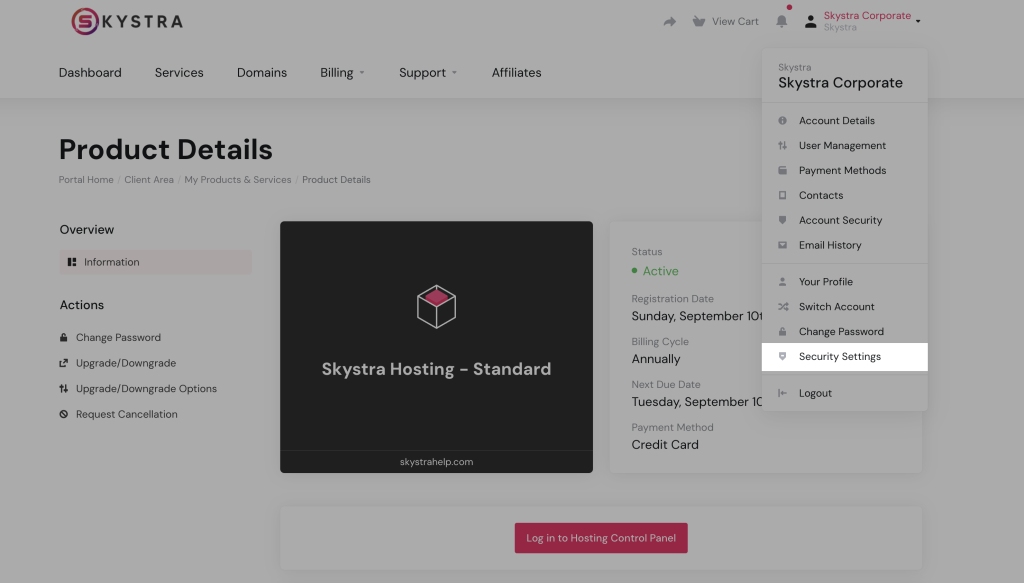
3. Click on the Click here to Enable button
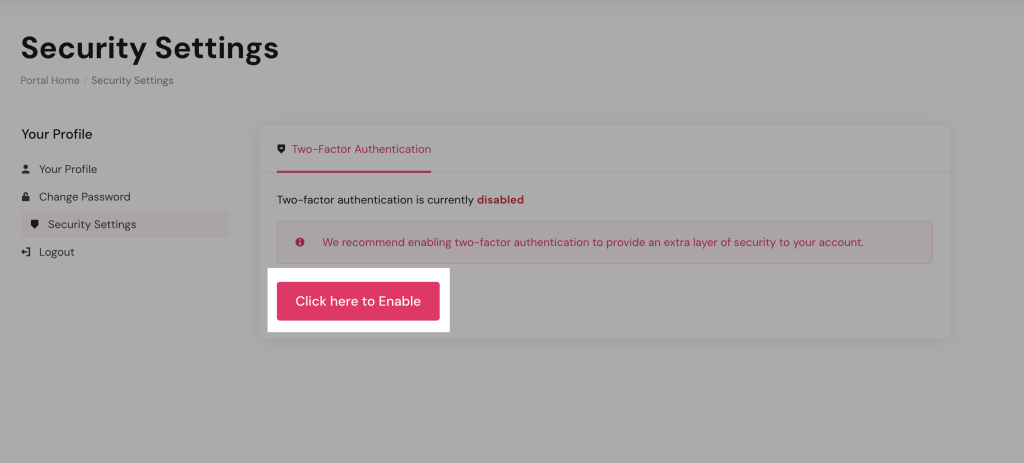
4. You will get an Enable Two-Factor Authentication popup, click on the Get Started button

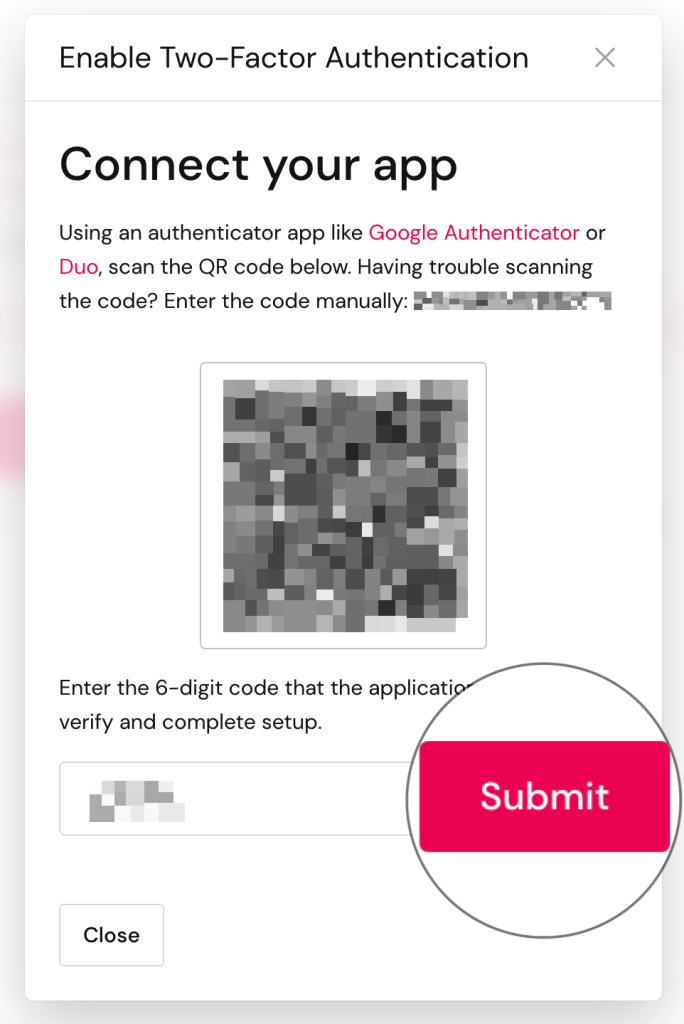
5. You will get a Connect your app popup. At this step, grab your mobile phone and download the Google Authenticator app. Once you’ve downloaded the Google Authenticator app, open it up and scan the QR code* displayed on the Connect your app popup. Then you will see a 6-digit code appear on your Google Authenticator app, type that code into the Enter authentication code field and click the Submit button.
*Note: If for any reason you are having trouble scanning the QR code, you can enter the code that appears next to Enter the code manually field in the popup. That will also generate a 6-digit code you can submit to enable Two-factor authentication.
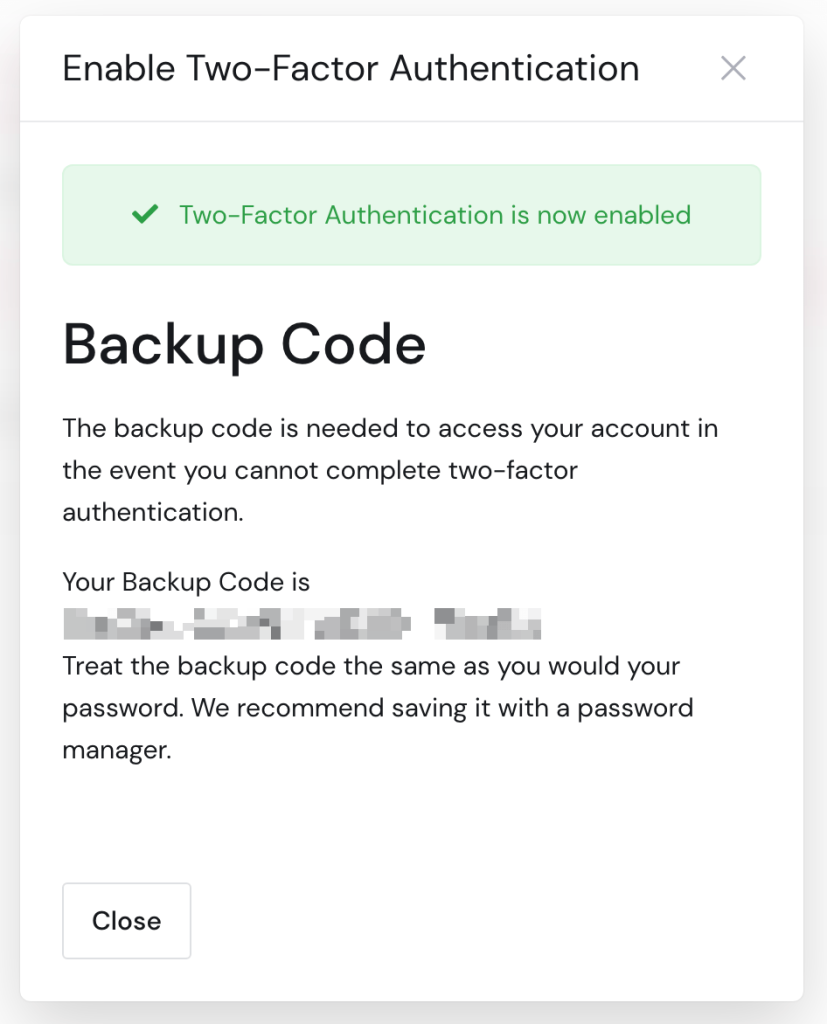
6. Once you submit your code, two-factor authentication will be enabled on your Nexym user portal. There will also be a Backup Code displayed, copy and save that Backup Code in a secure spot. You can use your Backup Code in case you are unable to access your 6-digit two-factor authentication code when signing in.
7. You can sign into your Nexym user portal and test your two-factor login. Remember, you will have to enter a new code every time you sign into your Nexym user portal. If you ever lose your 6-digit sign in code, you can use your backup code to sign in.