





• Pricing
  • Transfer To Us
  • How It Works
  • Why Nexym
  • Help
Contact

Contact Us

Contact us with any questions regarding a new service. For technical or payment support, please login to your user portal.

    This site is protected by reCAPTCHA and the Google Privacy Policy and Terms of Service apply.

    Français
    Website

    Manage users on your WordPress website

    Contents

    1. WordPress user roles and permissions
    2. Edit existing WordPress user
    3. Add new WordPress user
    4. Delete existing WordPress user

    A WordPress user is an individual with access to log into a WordPress website. There are a range of user roles and permissions, we will cover them in this guide.

    WordPress user roles and permissions

    • Administrator: Has full and complete access to all the administrative features
    • Editor: Can publish and manage posts including the posts of other users
    • Author: Can publish and manage their own posts
    • Contributor: Can write and manage their own posts but cannot publish them
    • Subscriber: Can only manage their profile and read content

    When you install WordPress, the user that is generated by default is an Administrator. As an administrator, you can manage other users, as in add and/or delete users, or edit existing user permission levels and credentials.

    Edit existing WordPress user

    Use the steps below to edit an existing WordPress user:

    1. Log in to your WordPress dashboard
    2. Click on Users

    3. Locate the user and hover over it
    4. Click on Edit

    5. Review settings and apply your updates
    6. Once updates are completed, click on the Update Profile button at the bottom

    Add new WordPress user

    Use the steps below to edit an add a new WordPress user:

    1. Log in to your WordPress dashboard
    2. Click on Users

    3. Select Add New User

    4. Fill in a Username (required)
    5. Fill in an Email (required)
    6. The first name, last name and website fields are optional
    7. Take note of the password
    8. Keep the Send User Notification box checked off (unless you do not want to send a notification)
    9. Assign a role based on the permission level you’d like the new user to have
    10. Click the Add New User button

    Here is an example of the full add new screen:

    Delete existing WordPress user

    Use the steps below to delete an existing WordPress user:

    1. Log in to your WordPress dashboard
    2. Click on Users
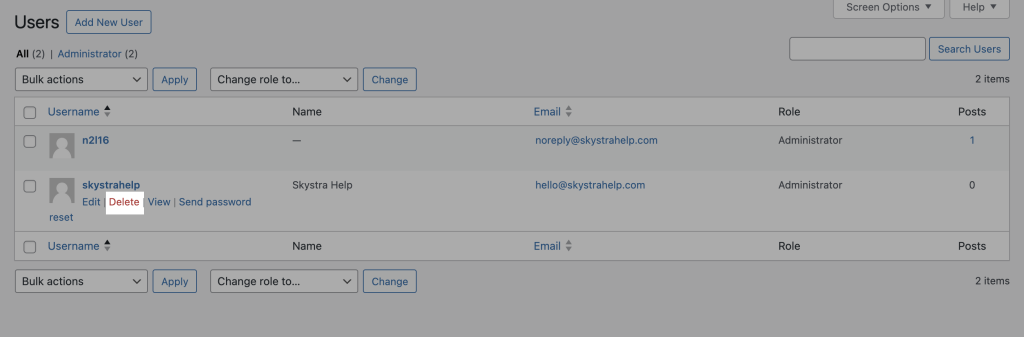
    5. If prompted and required, assign the user data to another user
    6. Click the Confirm Deletion button

    Post navigation

    Previous
    Next

    Related posts

    Website

    Reset your WordPress admin password

    You can reset your WordPress admin password using two easy methods. Reset your WordPress admin password from your WordPress admin dashboard 1. Open a new window on your web browser2. Go to your WordPress admin dashboard using https://yourdomain.com/wp-admin (replace yourdomain.com with your domain name)3. Click on Lost your password? 4. Enter the email address associated […]

    Website

    Log in to your WordPress admin dashboard

    Your WordPress admin dashboard is where you build and manage your WordPress website. To access your WordPress admin dashboard, log in either from the WordPress admin login page or by using the Login button in the WordPress Manager on your hosting control panel. This guide will show you the steps for both login methods. Method: […]

    Nexym offers reliable and affordable web hosting, powered by really awesome people and next-gen cloud technology.

    Services
    • Website Hosting
    • WordPress Hosting
    • Ecommerce Hosting
    • Application Hosting
    • Joomla Hosting
    • Drupal Hosting
    • PHP Hosting
    • HTML Hosting
    Resources
    • Transfer
      FREE
    • How It Works
    • Help Center
    • User Portal
    Company
    • Who We Are
    • Why Nexym
    • Sustainability
    • Accessibility
    Social

    © Nexym 2025

    • Terms & Conditions
    • Privacy Policy